
Add Users to MyKinamo
For security reasons, logins for our MyKinamo customer portal are not intended to be shared among multiple people. Therefore, each user should have their own account.
By default, every Kinamo customer has one user with administrative privileges (admin). This administrator can add additional users and grant them access to the services and features they need.
This is useful, for example, when:
- A colleague needs to view or download invoices.
- An employee needs to manage the settings of a hosting package.
- An external partner or supplier needs temporary access.
- A technical contact needs to make changes to a DNS zone for, say, an email marketing platform, ERP system, or other external application.
By creating a separate user account for each person, everyone works with their own login, and you, as the customer, always maintain a clear overview of who has access to which services and information.
Inviting a User
To grant a new user access to MyKinamo:
Step 1: Log in
Log in to MyKinamo.
After authentication, you’ll be taken to a screen where you’ll find the link to the MyKinamo customer portal
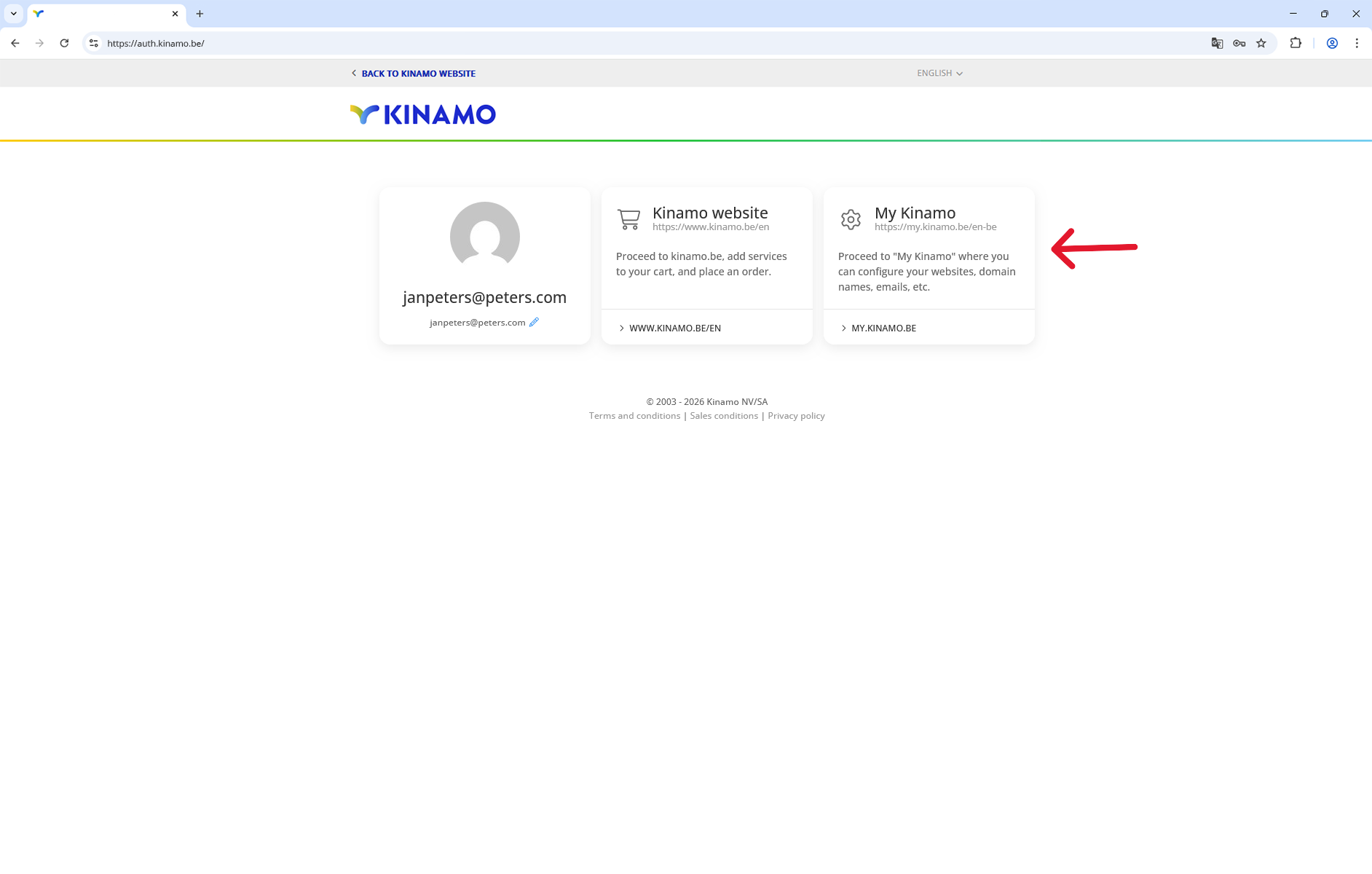
Step 2: Account Settings
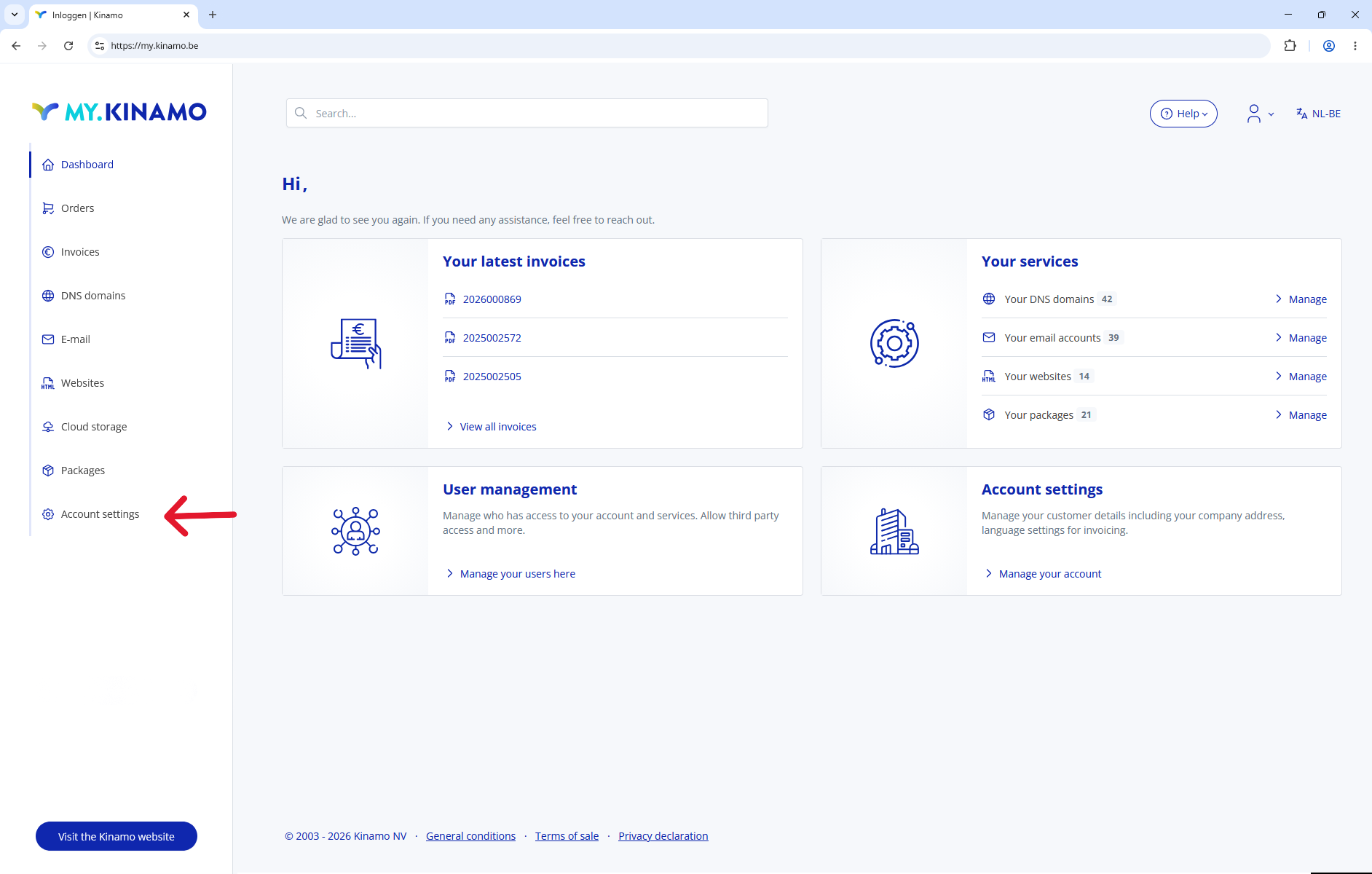
Go to Account Settings via the menu on the left or (via the hamburger menu at the top).
Step 3: User Overview
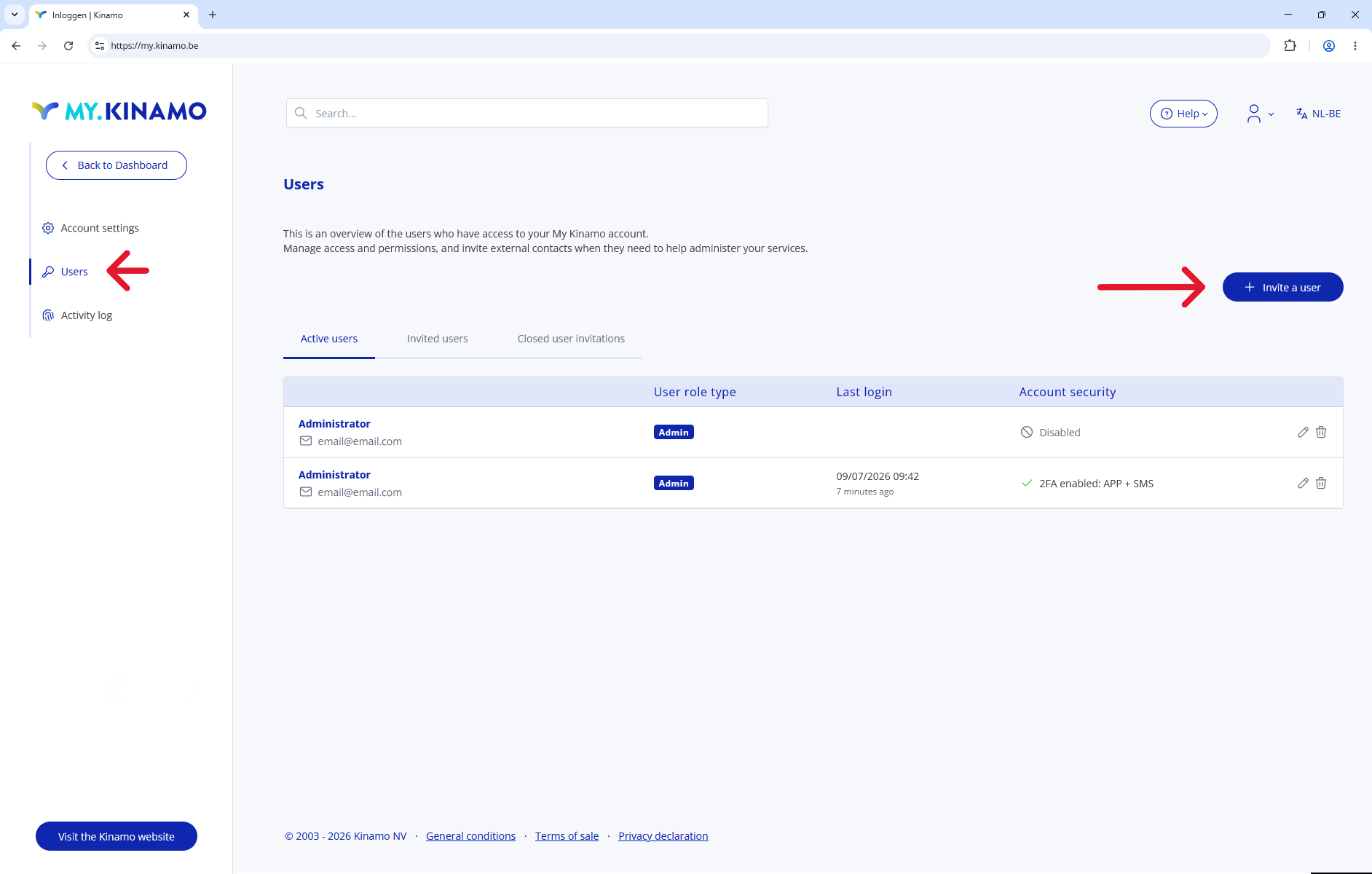
In the new menu, click on Users.
On this screen, you can see who currently has access, and you can add a new user by clicking the "Invite a user" button in the upper-right corner.
Step 4: Add a user
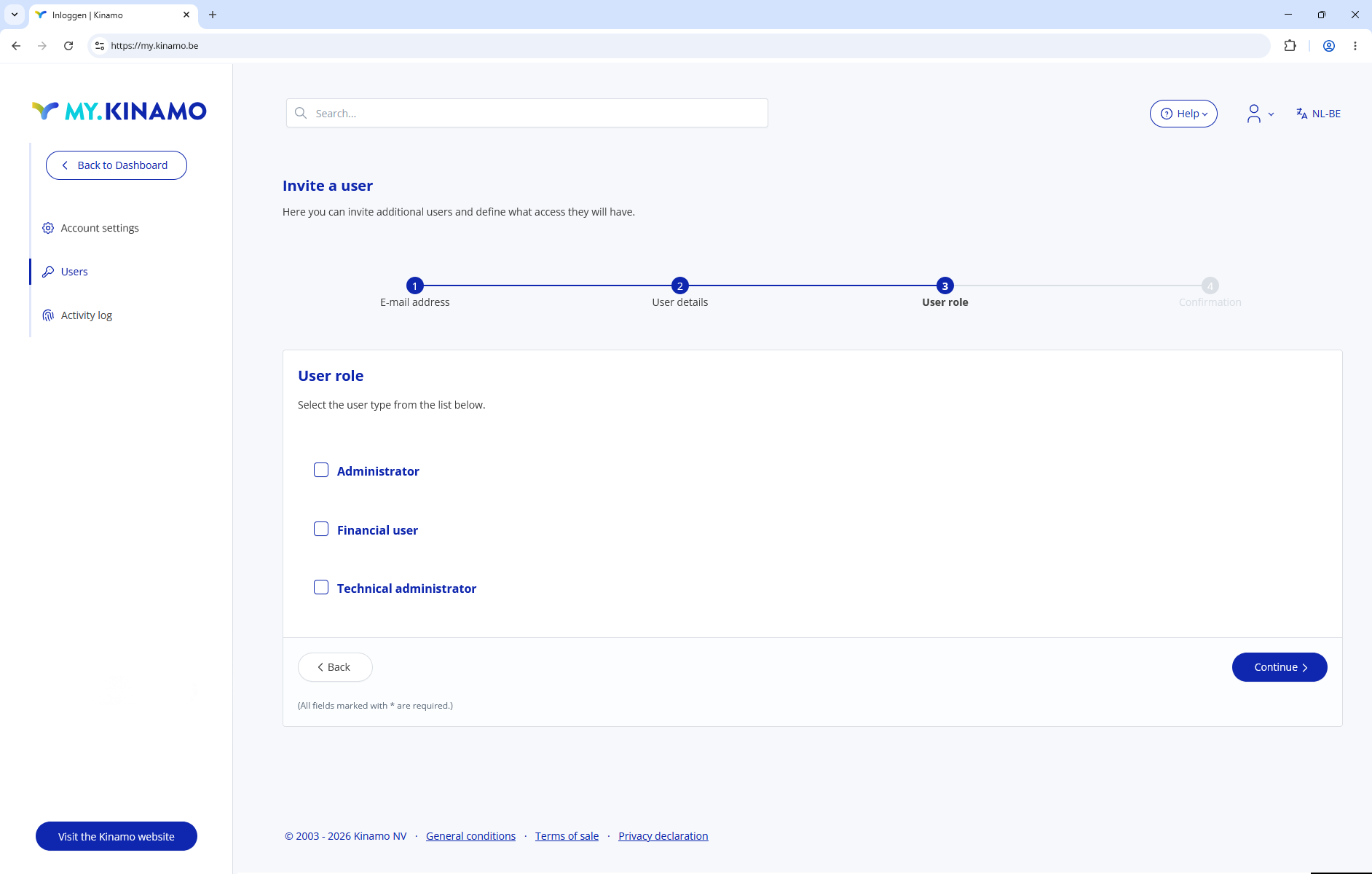
Enter the new user’s information. You’ll also be able to choose what access you want to grant this user and to which packages. If you have multiple packages, you can choose to grant a user access only to the package containing the services that person needs.
Step 5: Invitation is sent
Once you’ve filled in all the details, you’ll be taken to a screen where you can add a personal message to the invitation.
The user will then receive an email invitation to create their own MyKinamo account. Once the invitation is accepted, that person can log in independently and use their assigned permissions.
Tip: Removing users
If you grant access to an external party, you can easily revoke that access once the necessary settings have been adjusted. This keeps access to your services and information easy to manage and helps you maintain an overview.
Do you have questions about MyKinamo or your services? Feel free to contact our support team.
